
Executive summary
Eliminating NTLM from an enterprise environment is a significant challenge. It is deeply embedded in many infrastructures, and in some cases, critical legacy applications still depend on it. Replacing those applications can seem unrealistic, and for years this has been the reason NTLM remained in use. But the reality is different: most organizations do not actually need NTLM, and the bigger obstacle is that NTLM activity is hard to detect inside Active Directory. This difficulty only grows as the environment scales.
Considering the Windows 10 End of Life, along with Microsoft’s announcement of NTLM deprecation as part of it, this issue has resurfaced. Organizations need to start asking: how will we operate without NTLM authentication, and what steps should we take now to prepare?
NTLM doesn’t have to be a fact of life—it can be changed. This guide explains how NTLM works in Active Directory, why it can be difficult to phase out, and provides a practical plan you can follow to detect and eliminate NTLM usage in your organization.
Part 1: How does NTLM work?
NTLM (NT LAN Manager) is one of Microsoft’s older authentication protocols, originally built for early Windows networks. It was designed to allow users to prove their identity without sending a password in clear text, relying instead on a challenge-response mechanism. While this was effective in the 1990s, it is now considered outdated and insecure by today’s standards.
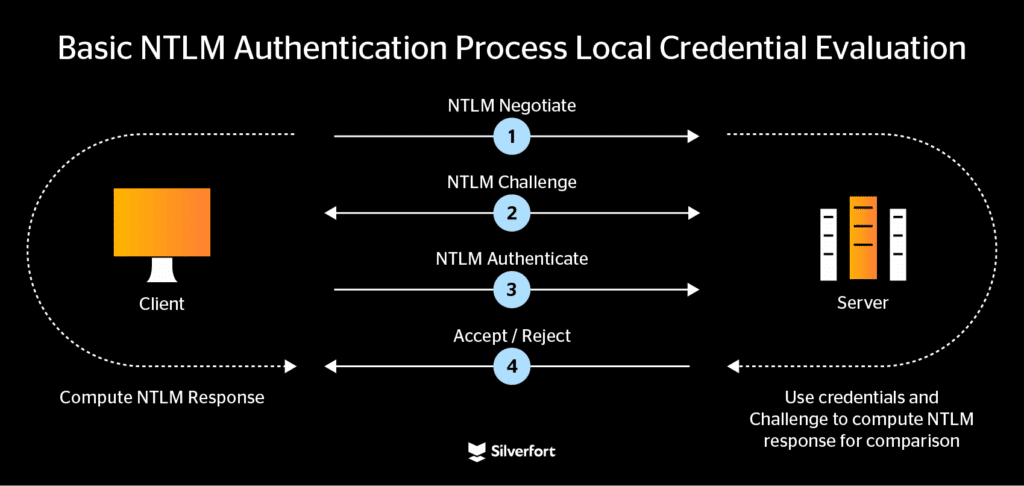
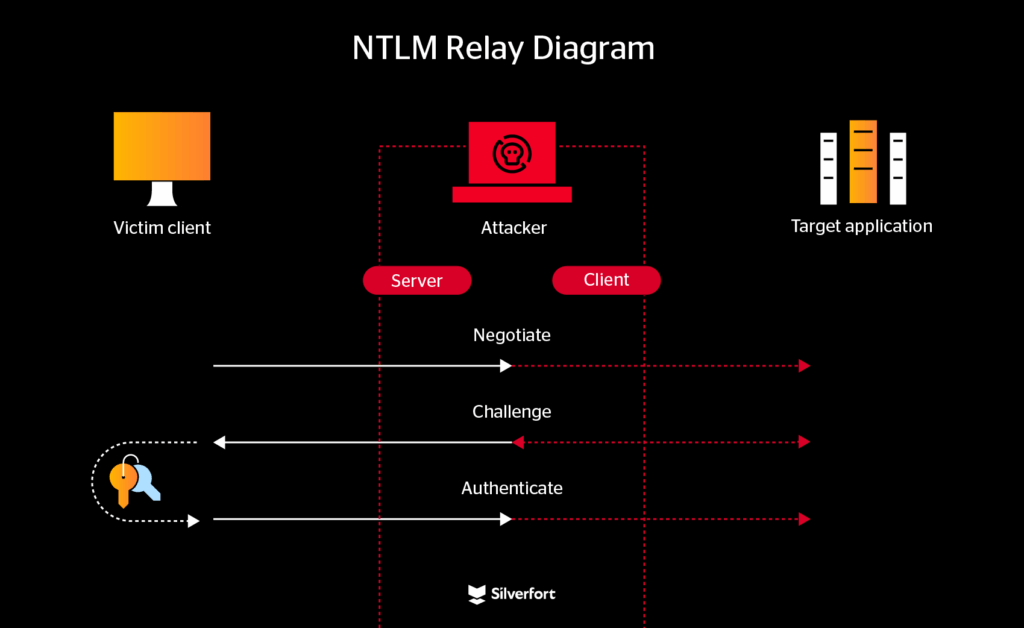
The NTLM authentication process follows a three-message exchange between the client, server, and Domain Controller:
- NTLM Negotiate
The client initiates authentication by sending a “Negotiate” message to the server. This message includes details about the client’s capabilities, such as which NTLM versions it supports.
- NTLM Challenge
The server replies with a “Challenge” message containing a randomly generated 16-byte nonce (the challenge). This ensures that authentication attempts cannot simply be replayed.
- NTLM Authenticate
The client now proves its identity by generating a response using the stored password hash.
- The critical step: the client calculates the NTLM Challenge Response according to the server’s criteria (e.g., NTLMv1 or NTLMv2).
- With NTLMv1, the client encrypts the challenge using DES, which is weak and easily brute-forced.
- With NTLMv2, the client includes additional data such as a timestamp and client nonce, producing a stronger—but still imperfect—response. The client sends this response back to the server in an “Authenticate” message.
- Accept or reject
In Active Directory, the server forwards the challenge and response to the Domain Controller. The DC looks up the user’s stored password hash in Active Directory, performs the same calculation, and compares results. If they match, the authentication is accepted; if not, it is rejected.
Although Kerberos has long been the preferred authentication method in Active Directory, NTLM is still widely used. Often, applications fall back to NTLM when Kerberos fails. This fallback behavior is one of the main reasons NTLM elimination is difficult: admins may not even be aware that NTLM is still active in their environments.
Part 2: Eliminating NTLM in your organization
Removing NTLM is not a single configuration change—it’s a process that requires visibility, planning, and careful execution. The key is to start by understanding where NTLM is still being used, then gradually reduce reliance on it, and finally phase it out entirely.
Step 1: Determine which applications use NTLM
You cannot eliminate what you cannot see. The first step is to detect NTLM usage across your environment.
Mapping NTLM applications manually is not an easy task. It requires combing through Windows Event Logs—for example, Event ID 4624 (successful logon) and 4776 (NTLM authentication)—and enabling NTLM auditing policies via Group Policy. While this can be done, it is time-consuming and becomes even more complex in large environments.
Instead, modern identity security capabilities enable you to compile all instances of NTLM usage in your environment in a single view.
In the Silverfort platform, here’s how you would build a comprehensive report of all applications using NTLM in your environment:
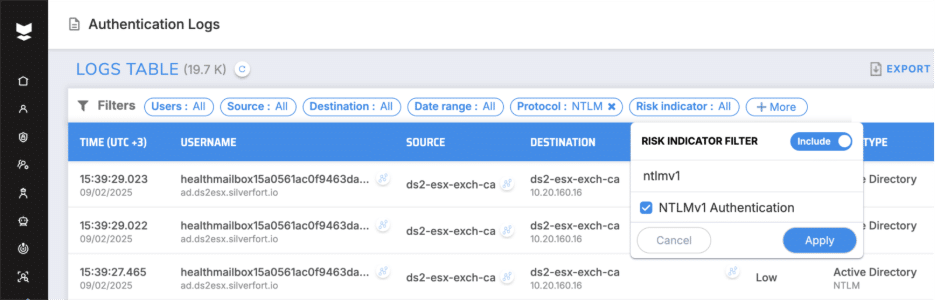
1. Open the Authentication Logs tab
2. Create an NTLM Protocol Filter
- Add any additional filters as needed (time range, users, devices, etc.)
- NTLMv1 can be filtered directly by applying the Risk Indicator

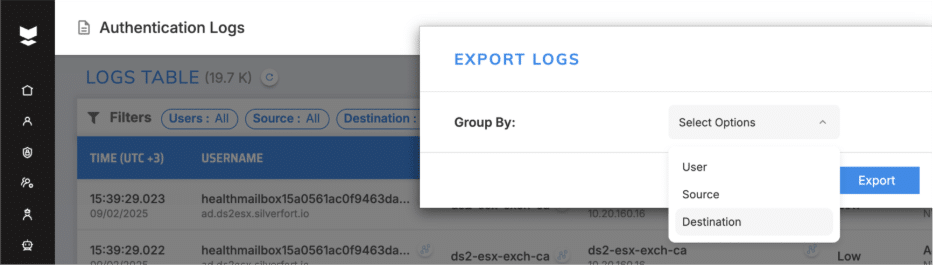
3. Export the report
- Group the data by Destination to identify which applications and servers still use NTLM
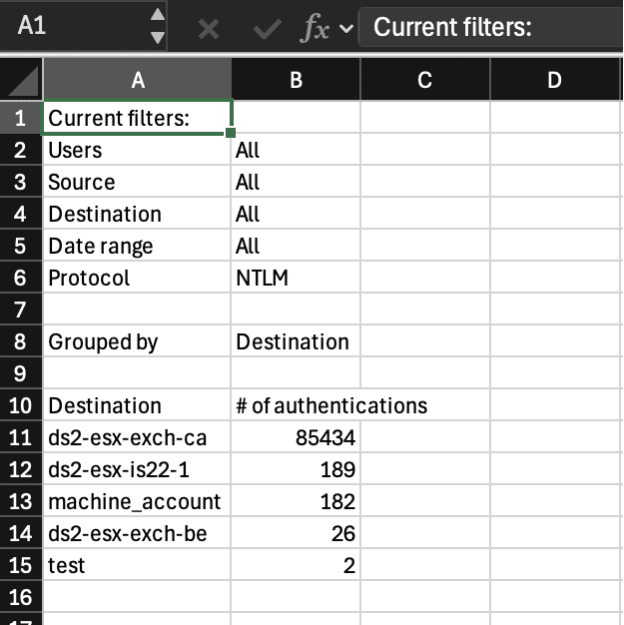
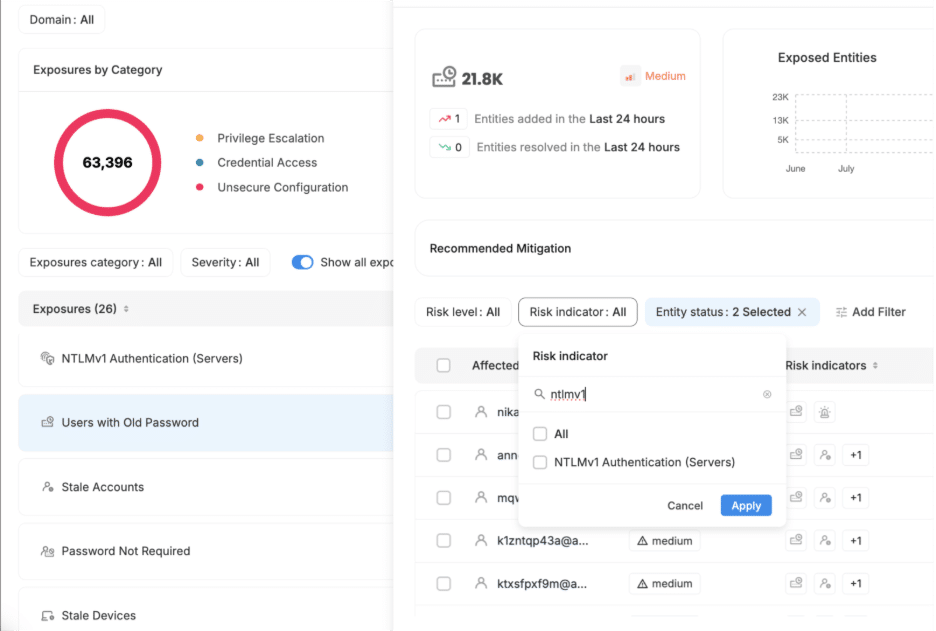
It’s important to remember that the client is in charge of the NTLM computation. This means detection efforts cannot stop at the application level—you also need to identify which clients fall back to NTLM. To fully eliminate NTLM, you must continuously monitor clients and detect the reasons for fallback. In many cases, fallback happens because Kerberos cannot be established; for example, due to misconfigured Service Principal Names (SPNs) or when a client connects to a resource using an IP address instead of a NetBIOS or DNS hostname, as Kerberos requires. You must address these underlying causes to prevent clients from defaulting to NTLM.
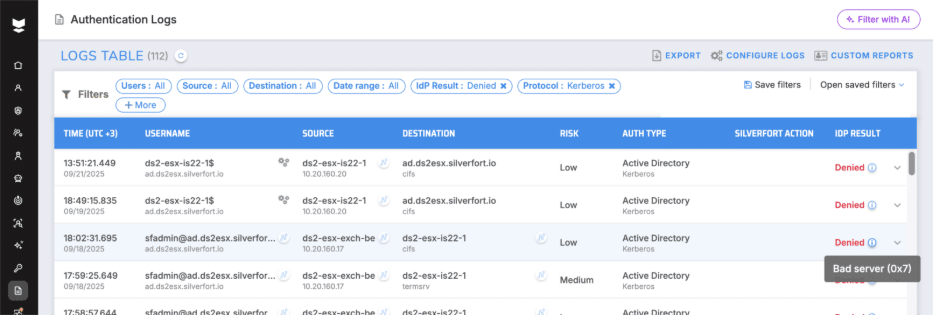
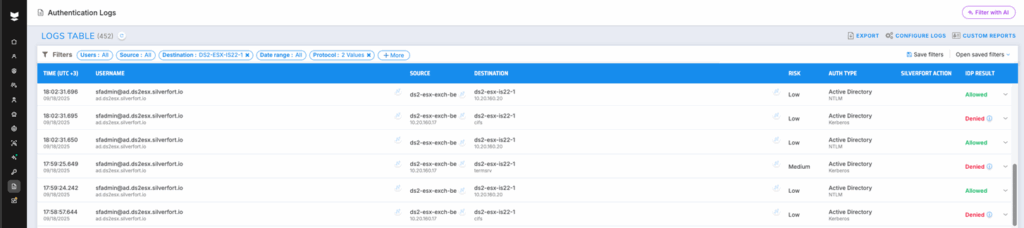
When investigating Kerberos authentication failures, remember that in most cases a failed Kerberos attempt is immediately followed by a successful NTLM authentication. This behavior makes it easy for NTLM to silently persist in the environment. Each Kerberos failure should therefore be reviewed to understand the underlying cause, whether it’s due to a missing or misconfigured Service Principal Name (SPN), the use of IP addresses instead of hostnames, or other implementation errors. Without this investigation, NTLM fallback will continue unchecked, undermining efforts to eliminate it.
To investigate Kerberos failures using Silverfort:
1. Open Authentication Logs
2. Apply filters: IdP Result: Deny, Protocol: Kerberos
3. Analyze the results

Step 2: Evaluate the risk – NTLMv1 vs NTLMv2
Not all NTLM usage carries the same level of risk. A critical part of your elimination plan is to differentiate between NTLMv1 and NTLMv2.
NTLMv1
NTLMv1 uses DES for its challenge-response calculation, which is far too weak by modern standards. Attackers can use rainbow tables or modern GPU-based brute force to crack NTLMv1 responses in seconds. For this reason, NTLMv1 should be blocked immediately in every environment. Continuing to allow it puts user credentials at unnecessary risk.
NTLMv2
NTLMv2 improves security by introducing HMAC-MD5 and including extra information in the authentication exchange. One key improvement is the use of AV_PAIRS (attribute-value pairs), which can carry data such as the client’s timestamp, target server name, and target information. These fields help defend against simple replay and relay attacks, since the response is tied to a specific server and session context.
However, the protection is not complete. If attackers can manipulate or strip the AV_PAIRS (for example, in configurations that don’t enforce target validation), relay attacks are still possible. In practice, NTLMv2 remains vulnerable to pass-the-hash and NTLM relay in scenarios where signing and channel binding are not enforced.
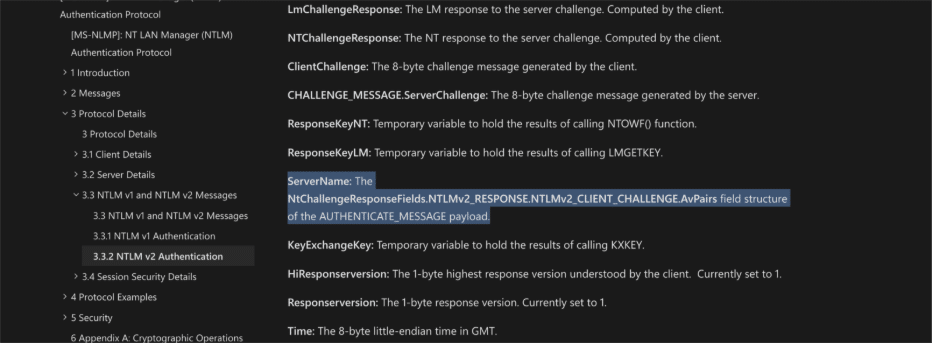
When building your NTLM elimination plan, it is important to prioritize by risk. NTLMv1 should be considered an immediate risk and blocked without delay, as its use creates a direct and easily exploitable attack surface. NTLMv2, while stronger, should be treated only as a temporary step. It offers better protection than NTLMv1 but still leaves your environment exposed to relay and hash-based attacks. In practice, this means eliminating NTLMv1 first, then focusing on systematically reducing and phasing out NTLMv2 until NTLM is fully removed.
Step 3: Block NTLMv1 with Group Policy and know its limitations
Blocking NTLMv1 through Group Policy is an essential step in any elimination plan. The LMCompatibilityLevel policy (or its Group Policy equivalent) allows you to configure Domain Controllers to refuse NTLMv1 authentications and only accept NTLMv2. This is the recommended baseline configuration for every Active Directory environment.
How to activate the Group Policy:
- Open Group Policy Management Console (GPMC).
- Navigate to: Computer Configuration → Windows Settings → Security Settings → Local Policies → Security Options
- Locate the setting: Network security: LAN Manager authentication level
- Set the value to: Send NTLMv2 response only. Refuse LM & NTLM
This ensures that Windows systems are instructed to generate only NTLMv2 responses and that Domain Controllers reject NTLMv1 authentications.
However, it’s important to understand that this control alone may not fully protect you. In certain cases, misconfigured applications can still force NTLMv1 authentications despite the Group Policy setting. This creates a risk of false confidence, where administrators believe NTLMv1 is blocked while in reality it remains active in the environment.
For a detailed technical explanation of how such a bypass works and why it occurs, see my blog post: NTLMv1 Bypass in Active Directory – Technical Deep Dive.
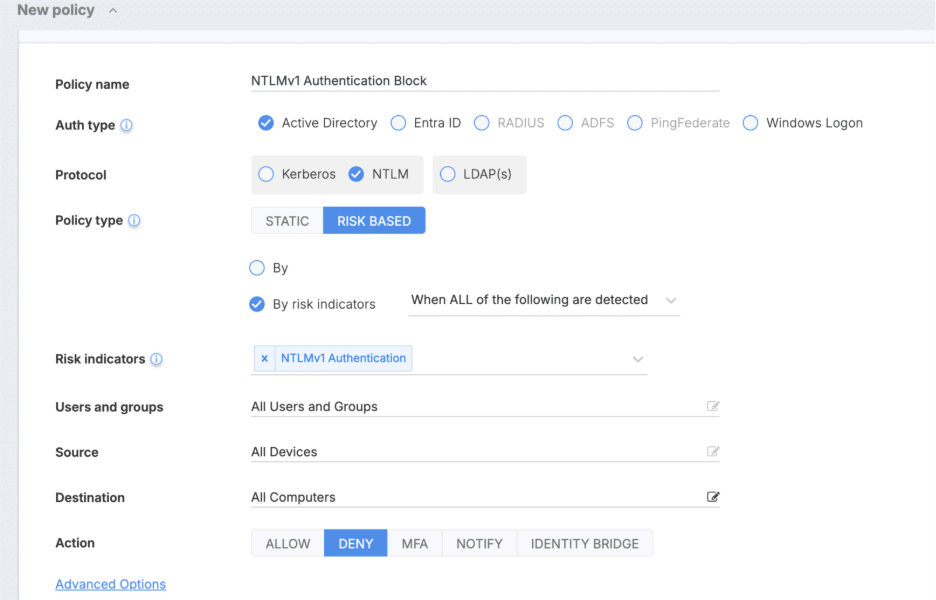
My current recommendation is to monitor and eliminate NTLMv1, and if possible, create a risk-based policy for all NTLMv1 authentication using Silverfort.
Step 4: Check if applications support other authentication methods
A common reason NTLM lingers in environments is the assumption that certain applications only work with NTLM. In many cases, this is not true. Applications may fall back to NTLM because of misconfiguration, missing prerequisites, or simply because administrators have not enabled stronger protocols.
Before replacing or retiring an application, check whether it already supports a more secure authentication method:
- Kerberos – Most modern Windows applications are capable of Kerberos authentication when Service Principal Names (SPNs) are correctly configured. Many NTLM “dependencies” can be resolved by fixing SPNs or ensuring clients connect using DNS hostnames instead of IP addresses.
- SAML, OpenID Connect (OIDC), or OAuth – Web applications and cloud-facing services often support these modern authentication standards, either natively or through integration with identity providers (IdPs).
- Certificate-based authentication – Some enterprise applications allow smart card or certificate-based login, removing the need for NTLM entirely.
When evaluating applications:
- Check for later versions – Newer releases may have dropped NTLM dependencies or added support for modern identity protocols.
- Investigate documentation – Many vendors document Kerberos or federated identity support, but it often goes unused.
- Review identity configurations – Ensure your applications are integrated with your central identity provider wherever possible.
A good example of this is Microsoft SQL Server when accessed with the official mssql-jdbc driver. At first glance, many deployments appear to rely on NTLM authentication. However, in reality the driver fully supports Kerberos authentication, provided that Service Principal Names (SPNs) are configured correctly and the client connects using a DNS hostname instead of an IP address. In addition, Microsoft’s documentation outlines how to explicitly configure the driver for Kerberos, avoiding NTLM fallback. This is a case where NTLM seems unavoidable, but by reviewing documentation and adjusting identity configurations, administrators can move the application to Kerberos and reduce NTLM usage.
In addition, consider adding Multi-Factor Authentication (MFA) wherever possible. Even if NTLM or Kerberos remains in use, MFA significantly reduces the risk of credential theft and misuse. Silverfort extends MFA protection to authentication protocols such as NTLM and Kerberos, providing an extra layer of defense for both legacy and modern systems.
Step 5: Plan to shut down NTLM-based applications
Once you’ve identified NTLM usage, blocked NTLMv1, and enabled stronger alternatives where possible, the final step is to plan the shutdown of NTLM-based applications altogether. This is the only way to fully eliminate the risks NTLM introduces.
This plan should include:
Upgrades – Move to newer versions of applications that support Kerberos or modern authentication standards. Many vendors have dropped NTLM dependencies in recent releases.
Replacements – Where upgrades aren’t possible, evaluate replacement options that align with your identity strategy.
Decommissioning – Build a clear timeline for retiring applications that depend solely on NTLM.
In addition, remember that clients play a key role in NTLM elimination. Because the client is responsible for NTLM computation, you need to continuously monitor for clients falling back to NTLM and identify the reasons why. Common causes include:
IP usage instead of hostnames – When a client connects with an IP address rather than a NetBIOS or DNS hostname, Kerberos cannot be used, forcing fallback to NTLM.
Improper Kerberos usage in applications – Some applications fail to implement Kerberos correctly and default to NTLM instead. A great example for improper use is the KDC spoofing vulnerabilities identified by Silverfort in multiple products such as IBM QRadar (CVE-2019-4545), Cisco ASA and Palo Alto Networks PAN-OS , where incorrect Kerberos handling enabled attackers to bypass Kerberos and gain elevated access (read more here).
For a quick cheat sheet of these steps that you can share with your team, visit here.
Detecting and addressing these issues is essential to prevent NTLM from silently reappearing after you believe it has been eliminated.
The upcoming Windows 10 End of Life and Microsoft’s announcement of NTLM deprecation create the right opportunity to align this shutdown plan with broader IT modernization projects. Treat NTLM elimination as part of your infrastructure refresh, so by the time Windows 10 is phased out, your environment is no longer dependent on NTLM.
To get your team ready for these critical changes, check out our on-demand webinar where I explain how to surface NTLM authentication and craft scalable policies to help you eliminate it.